 HappyScan
Features
Made for the photos you can't replace.
Just the photo
HappyScan finds the edges, fixes the angle and keeps just the photo. No cropping by hand, even through glossy album sleeves.
A whole page at once
Turn on Multi mode to scan every photo on the album page in one shot. Each one is saved as its own picture.
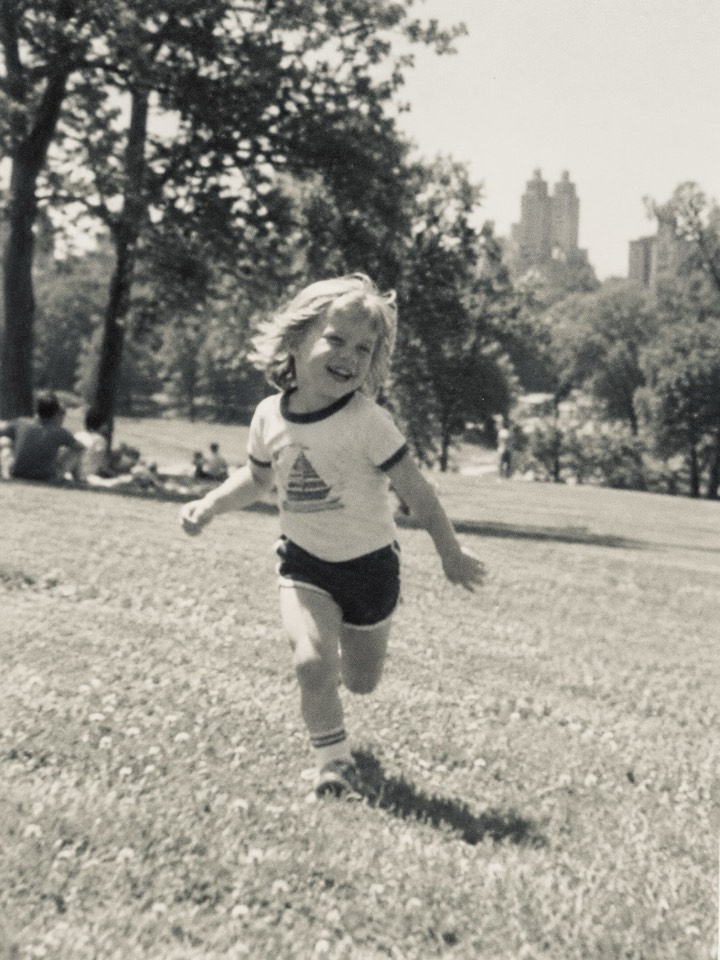
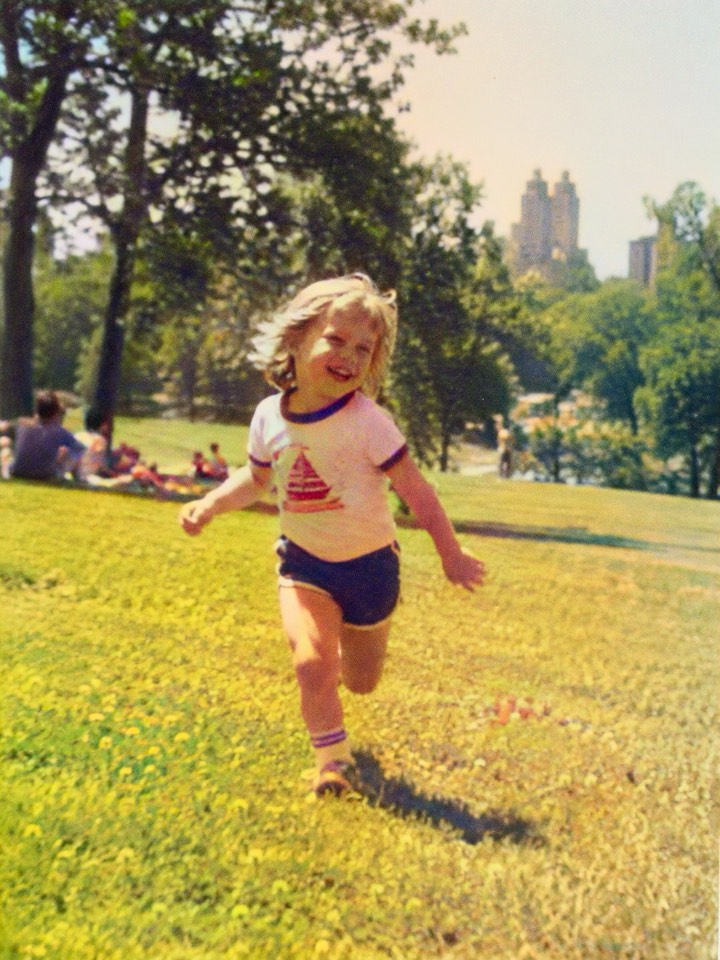
Black and white, in color
Black-and-white photos can be restored in full color. HappyScan keeps the original too, so you can always switch back.
Your photos stay yours
Scanning and colorizing happen right on your iPhone. Your photos are never sent to a data center, and no account is needed.
Support
We're here to help.
Questions, problems or ideas?
Email us and we'll get back to you. In the app, you can also go to Settings › Send Feedback.
Does HappyScan upload my photos?
No. Scanning, cropping and colorizing all happen on your iPhone, and your photos are not uploaded to us or to anyone else. See the Privacy Policy for details.
How do I scan several photos at once?
Switch the scanner to Multi mode with the buttons under the camera preview. HappyScan then saves every complete photo it can see on the page.
Can I get the original back after colorizing?
Yes. HappyScan keeps the original next to the colorized version. Use the Color switch in the photo viewer to go back and forth.
How do I save scans to the Photos app?
Select one or more scans, tap Share and choose Save Image. To save every new scan automatically, turn on Save to Photos in Settings › Scanner.
How do I restore my purchase on another iPhone?
In the app, go to Settings › Membership and tap Restore. Lifetime Membership comes back on any iPhone signed in to the same Apple Account.